
Build Your Own AI Deal Room
Every buyer leaves the first call with a private page built only for them, and it updates every time you talk. This guide shows what that page looks like, what you need, and how to have Lovable, Claude or Swan build it for you.
Watch the walkthrough
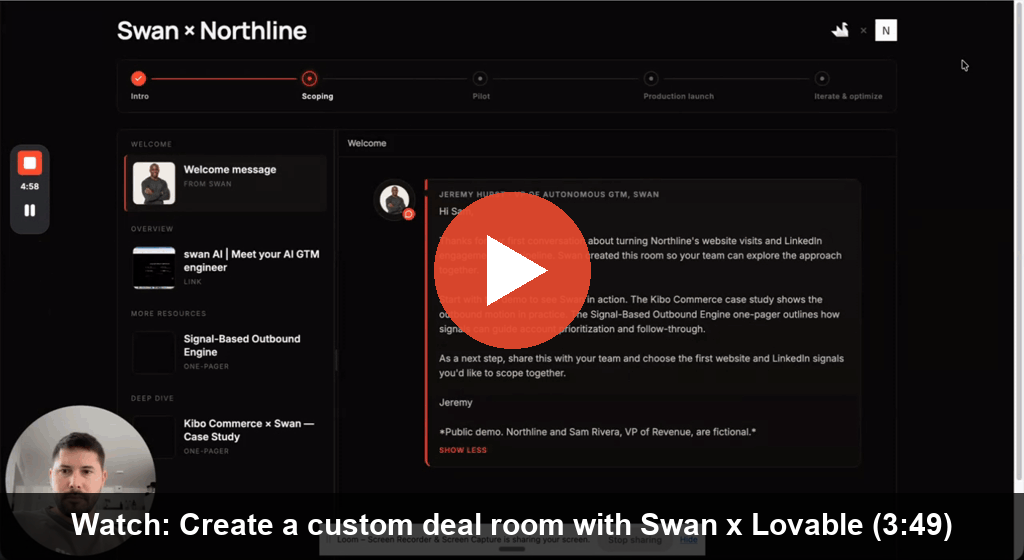
Create a Custom Deal Room with Swan x Lovable (Loom, 3:49): a live walkthrough of the Northline room and how Swan builds it.
Want us to build this for you? Swan can set up the whole loop on your deals: the room, your assets, the post-call trigger and the visit alerts. Book a demo.
The idea and the results
A deal room is a private web page for one buyer: a welcome note from their rep, where the deal stands, and the two or three assets that answer what they asked on the call. At Swan we plugged our GTM brain (Swan) into an AI designer (Lovable), so every buyer walks out of a first call and into a room built around their exact problem. Amos Bar-Joseph's post covers the full story.
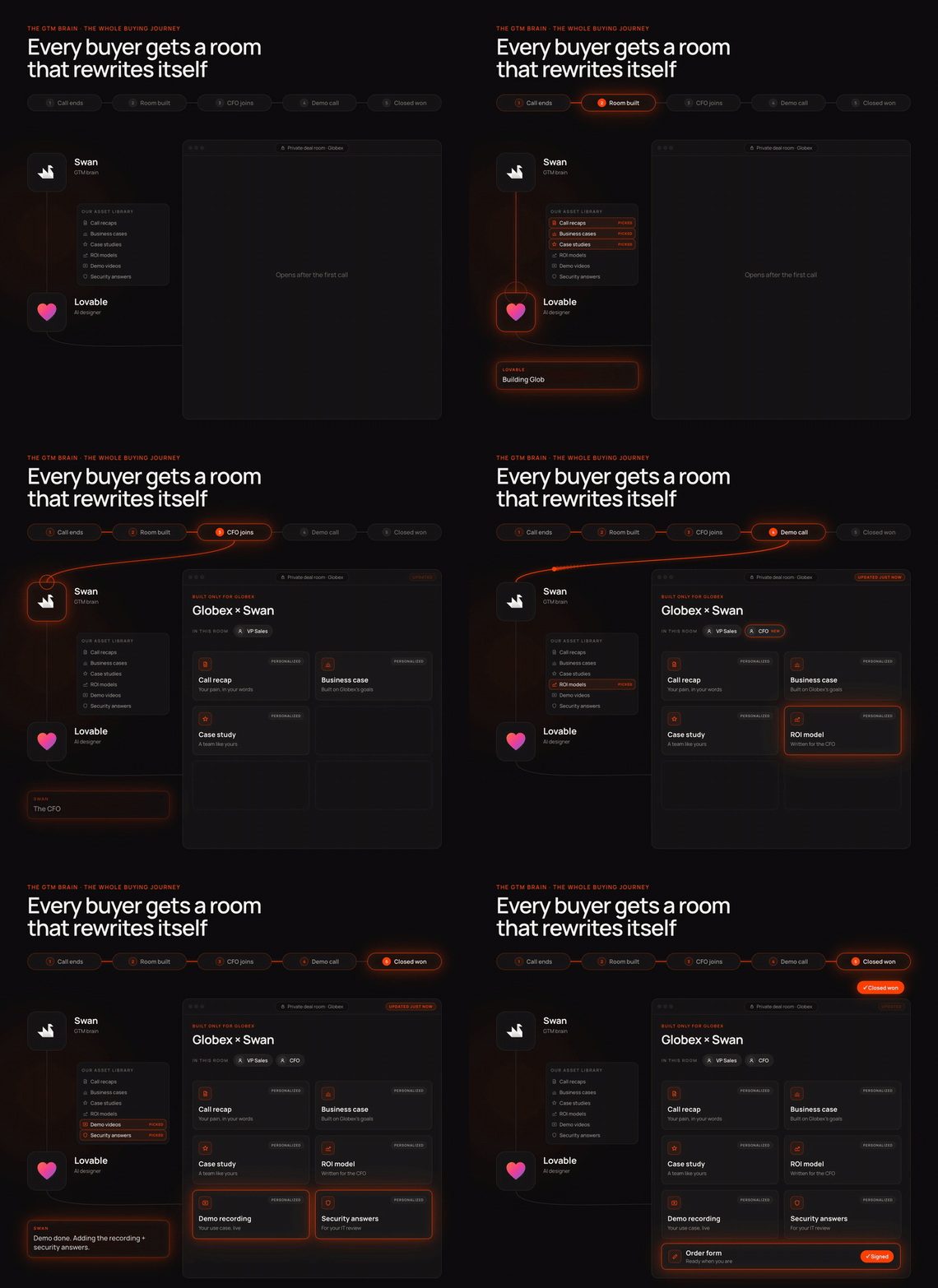
The visual from Amos's post: one room for one buyer, updated from first call to closed won.
| Metric, first 8 weeks | Result |
|---|---|
| Buyers who got their own room | 200+ |
| Assets created, by one salesperson | 230 |
| Average visits per room | 4+ |
| Win rate | 20% to 45% |
The reason it works: most teams point AI at the top of the funnel. The meeting itself, the most personal moment in the deal, usually gets a "great chatting today" email, an old deck and a calendar link. The vendor with the best buyer journey wins, and the room is the buyer journey.
The loop we run:
- The call ends and the transcript goes to Swan.
- Swan already holds the full context on the account: CRM, past conversations, signals, who is on the buying committee.
- Swan picks the assets this buyer needs from the library and briefs Lovable on how to personalize each one.
- Lovable builds the room with those assets inside.
- The seller reviews and approves before the buyer sees anything.
- At every new touchpoint, Swan updates the room, until the deal closes. Visits come back to the rep as alerts.
What a deal room looks like
It is one page with four parts, read top to bottom. On a phone the same parts stack into a single column: note, stage, asset list, then the open asset.
| Part | What it shows | Why it matters |
|---|---|---|
| Header | Your logo × the buyer's real logo, and "Deal room · Buyer" | The buyer sees in one second that this was made for them |
| Welcome note | A short note from the rep, with headshot, written from the call | Proves you listened; says what to open first and why |
| Stage tracker | Your deal stages, with the current one highlighted | Makes the next step obvious to everyone the buyer forwards it to |
| Assets | Up to 3 items, each with a real thumbnail and a one-line reason, opening inside the page | Answers this buyer's questions without sending them to five links |
Typical assets: the demo video, the call recording with a 5-bullet recap, the case study closest to their situation, and one asset made for this buyer, such as an executive brief, a use-case one-pager or a pilot plan. Every visit is tracked: who opened it, for how long, and which assets they read.
Here is one of ours, built by Swan for a demo buyer ("Northline" is fictional; the assets are our real collateral). Open the live Northline room and click through it yourself.
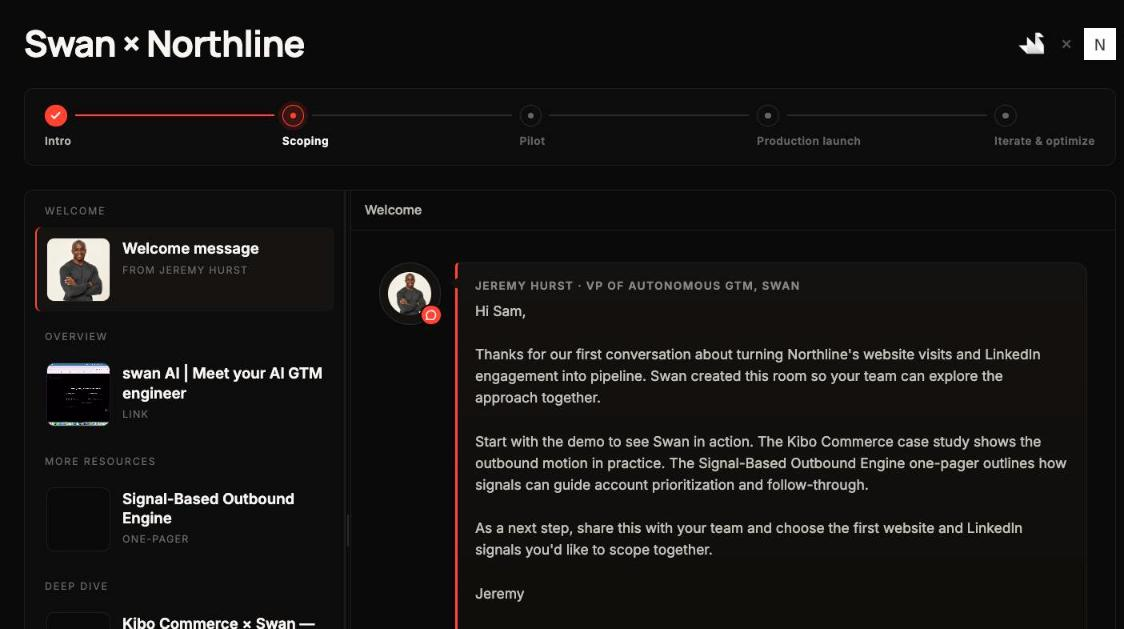
A real Swan deal room: the welcome note references the call, and every asset in the sidebar is there for a reason the note explains.
What you need
You need a Lovable account and your real sales material. Swan and Claude are optional for the first room and become the engine once you run this on every deal.
| Tool | What it does here | Needed for |
|---|---|---|
| Lovable | The AI designer. Builds, hosts and publishes the room as a web app | All paths |
| Lovable Cloud (inside Lovable) | Database, file storage and server functions for rooms, uploads and visit tracking | Paths 2 and 3 |
| Swan | The GTM brain. Holds account context, picks assets, writes the brief, creates and updates rooms, alerts on visits | Path 3 |
| Claude (claude.ai or Claude Code) | Optional operator. Connect the Lovable and Swan MCP servers and drive both from one chat | Any path |
| A call recorder (Circleback, Gong, Fathom or similar) | Gives you the transcript and a durable recording link | All paths |
Collect these once, in one folder, before you prompt anything:
- Your logo, ideally white on transparent PNG
- Brand palette: one accent color, one near-black, one off-white (hex values)
- Two fonts: one display, one body (Google Fonts names are fine)
- Your rep's headshot, name and title, for the welcome note
- A 2 to 3 minute demo video (Loom or YouTube link)
- Your strongest case study (PDF, page or one-pager)
- One overview deck (PDF or screenshots)
- Your deal stages, for example Intro, Scoping, Pilot, Launch, Expand
- One real call transcript and the buyer's company website, for the first room
Use real brand values from day one. Building against placeholders means redoing every asset later.
Pick your path
Start with Path 1 to feel it, move to Path 2 once you send more than a few rooms a month, and add Path 3 when you want rooms to appear after every call without anyone prompting.
| Path 1: One room today | Path 2: Deal-room workspace | Path 3: Swan runs it | |
|---|---|---|---|
| What you get | One published page for one buyer | A private library plus a public room per buyer, with tracked links and visit analytics | Rooms created and updated automatically from call transcripts and account context |
| Time to first room | About 30 minutes | A few working sessions | Path 2, plus about an hour to connect |
| Who prompts | You, in Lovable | You, in Lovable | Swan (you approve) |
| Visit tracking | Basic Lovable analytics | Per-room, per-asset, per-viewer | Visits become Slack alerts with account context |
| Best for | Trying it on one hot deal | A team sending rooms weekly | Every deal, every call |
Path 1: your first room in about 30 minutes
Two prompts. The first turns a call transcript into a room brief. The second hands that brief to Lovable, which builds and publishes the page.
Step 1. Write the room brief. Paste this into Swan (it already has the account context) or into Claude with the transcript attached.
Write a deal-room brief for <BUYER COMPANY> (<buyer website>) from the attached call
transcript and everything you know about this account.

Return exactly these sections:
1. Buyer: company, one line on what they do, the main contact (name, title), other people on the call.
2. What they told us: their top 3 pains in their own words, their goal and how they measure it, their current tools.
3. Where the deal stands: the current stage from <YOUR STAGES>, and the agreed next step with owner and date.
4. Welcome note: under 120 words, first person from <REP NAME>, addressed to the contact by first name,
   referencing what was discussed, one line per asset saying why it matters to them, and a clear next step.
   No emojis, no em dashes, no hype.
5. Assets: pick up to 3 from my library below. For each: title, link, and one sentence on why this buyer needs it.
   Always include the demo video. Include the case study only if their situation matches it.
6. Call recap: 4 to 5 one-line bullets (where they stand, key pains, what we showed, their goal, next step).

Only use facts from the transcript, the account record or my library. If something is unknown, write "unknown".
Never invent pricing, dates, numbers or commitments.

My library:
- Demo video: <link>
- Case study: <link>
- Overview deck: <link>
- <any other asset>: <link>
Step 2. Build the room in Lovable. Open a new Lovable project, attach your logo, headshot and any PDFs, then paste this with the brief from Step 1 underneath.
Build a single-page private deal room for one buyer. It is a web page we send after a sales call.
No login, no sign-up, no admin screens.

Brand: logo attached. Accent <ACCENT HEX>, background <NEAR-BLACK HEX>, text <OFF-WHITE HEX>.
Fonts: <DISPLAY FONT> for headings, <BODY FONT> for text. Dark editorial look; use the accent sparingly.

Layout, top to bottom, in one centered column:
1. Header: our logo × the buyer's logo, both white on the dark background. Find the buyer's real logo
   from their website; never draw or invent one. Under it, a small label "Deal room · <Buyer>".
2. Welcome note: a chat-bubble card with the attached headshot, "<REP NAME>, <TITLE>", and the welcome
   note from the brief, rendered as markdown.
3. Stage tracker: <YOUR STAGES> as a horizontal tracker. Earlier steps done, "<CURRENT STAGE>" current.
   On mobile show only the current step and a small progress bar.
4. Assets: a list of cards (thumbnail, title, one-line "why this matters to you") that open each asset
   inside the page: videos embedded at 16:9, PDFs rendered page by page in the browser (not downloaded),
   links opened in a viewer panel. Thumbnails must preview the real asset (video still, PDF page 1,
   first slide), never a generic icon.
5. A short call recap from the brief, and one clear call to action: "<NEXT STEP>" with <CALENDAR LINK>.

Rules:
- Works perfectly on a phone down to 360px wide. Check the mobile layout before you finish.
- Use only the facts in the brief below. Do not invent numbers, quotes, logos or customer names.
- Page title: "<Your company> × <Buyer>".
- Do not show any "back", "home" or navigation to anything else.

Brief:
<PASTE THE BRIEF FROM STEP 1>
Step 3. Check, publish, send. Open the preview at phone width and fix anything with one short follow-up prompt. Then click Publish (the preview is not the live page), open the published link in a private window, and send it in your follow-up email.
Two Lovable habits save credits: use plan mode for anything bigger than a copy tweak, and batch related changes into one message.
One room is easy. Two hundred is a system. Want Swan to build rooms after every call for you? Book a demo.
Path 2: a reusable deal-room workspace in Lovable
One Lovable project holds your whole asset library privately and serves a public room per buyer. You never build admin forms: the Lovable chat is the admin screen, and later Swan or Claude drive it through an API. This is the system behind our 200+ rooms.
Kick it off. New Lovable project, plan mode on, attach your brand folder, paste:
Build an internal sales-asset workspace with public customer deal rooms. I operate it only by
prompting you. There is no end-user login, no sign-up and no admin forms. The only public pages are
deal rooms (/room/<slug>) and tracked share links (/s/<token>). Enable Lovable Cloud for database,
storage and server functions. Ask me for any missing brand inputs, then give me a phased plan in the
order below, build one phase at a time, and show me how to verify each phase before the next.
Never invent customer numbers, logos or proof points. Never publish or send a customer link without
my approval.
Build in this order. Each phase depends on the one before it.
- Design system. All colors, fonts, spacing and motion as tokens in one CSS file; nothing hardcoded. A /design-system page shows them live. Gate: change one token and everything updates.
- Asset library. Every asset type gets a registry the home screen, the room picker and the agent all read: decks (one file per slide, swipeable on mobile), one-pagers, reusable templates (a proposal with a line-item table), uploads (PDFs rendered in the browser, not downloaded) and external links (Loom, Notion, Figma). Gate: every asset shows in /assets with a real thumbnail.
- Database, locked down. Tables for rooms, room items, uploads, links, template instances, share links and visit sessions/events. Row-level security denies everything to anonymous users; public pages read only through functions that return live rooms and safe columns. Internal notes and account context are never public. Gate: the security linter is clean and an anonymous read of the rooms table is refused.
- The public room. /room/<slug>: you × buyer logos, welcome bubble from the rep, stage tracker, and a two-pane asset viewer (sidebar list, content pane). Below 900px it becomes one column: welcome, tracker, list, asset. Gate: perfect in a private window at 402px and on desktop.
- No way back in. Single-asset links (/room/<slug>/a/<item>?embed=1) render the asset and nothing else, so a buyer can never click into your private library. Gate: from any shared page there is no path to /.
- Tracked links and visits. Tokenized share links per asset or room, an optional email gate, and visit tracking (sessions, time per asset, returning visitors) with no raw IPs stored. Gate: open a link in incognito, see the visit, revoke it, see it die.
- An API for agents. Server endpoints (and an MCP server) to find rooms, list assets with one-line "when to use this" descriptions, create or update a room, add or remove items, and fetch a tracked room link. Protect every write with a secret. Add webhooks that fire on room visits. Gate: "create a room for X with these 3 assets" works through the API with no follow-up fixes.
- Skill and memory. Create a create-dealroom skill (logo sourcing and white-on-transparent cleanup, default stages, welcome style, asset order, thumbnail rules, mobile check, read-back before reporting done) and save the house rules from section 9 as project memory.
The phases above are the summary. The full spec, with every prompt, verify step and fix, is in the Lovable build spec tab. Export it as Markdown and attach it to the kickoff prompt: that file is what makes Path 2 reliable.
Lovable mechanics that bite first-timers:
- The preview is not the live site. Frontend changes need a manual Publish before a buyer sees them; database changes are live immediately. A buyer seeing a 404 or old content almost always means you forgot to publish.
- Attach files instead of typing numbers. The agent reads screenshots and PDFs; typed pricing is where typos come from.
- "Remember this" saves a permanent project rule. Use it for brand, mobile and copy rules, not one-off facts.
- Check everything customer-facing in a private window at phone width before sending.
Rather not spend the sessions building it? We run this workspace in production every day and can set it up on your brand. Book a demo.
Path 3: Swan as the GTM brain
Lovable is the designer; Swan is the brain that knows the account. Swan already has the CRM record, every past conversation, the signals, the buying committee and the call transcript, so it decides what goes in the room and writes the copy. Lovable only renders it. The rep approves before anything reaches the buyer.
The room is never finished: every visit and every new touchpoint feeds Swan, and Swan updates the room until the deal closes.
Connect it, once:
- Give Swan the keys to your workspace. Store the workspace API secret from Path 2 as an org secret in Swan, and give Swan the API base URL. Never paste the secret into chat.
- Teach Swan the procedure as a skill. Ask Swan to create a "Manage deal rooms" skill from the house rules in section 9 and your API's endpoints: find the existing room first (one room per company), discover assets fresh every time, attach up to 3, write the welcome note in the rep's voice, read the room back after every write, and send only the tracked, email-gated link.
- Trigger it after every call. Set a Swan trigger on new meeting transcripts from your call recorder. Swan drafts the room and the follow-up email, then waits for the rep's approval.
- Close the loop with visits. Register a webhook in your workspace that fires on room visits and points at a Swan webhook trigger. Swan turns each visit into a Slack alert with context: who viewed, for how long, which asset, and whether it was likely your own team.
The skill text for step 2, ready to paste into Swan, is in the Swan skill template tab.
No API yet? Two lighter routes work too:
- Connect Swan's MCP server to Lovable as a custom connector (Lovable supports custom MCP servers on every plan). Lovable's agent can then pull the account context from Swan while it builds the room.
- Connect both Lovable's MCP server and Swan's MCP server to Claude. One chat then reads the account from Swan and creates or edits the Lovable project.
What reps actually type (in Slack, often from a phone):
Create a deal room from today's call with <Company>. I'm the owner. Only the recommended assets.
Then write a short follow-up email with the room link, cc <teammate>, and show it to me before sending.
Build <Company> a deal room. Think carefully about which assets they need based on what we know
about them, and tell me why you picked each one.
Update the <Company> room: add the recording from today's call with a 5-bullet recap,
move the tracker to Pilot, and refresh the welcome note.
This is the part Swan does for you. Account context, asset picks, the brief, the room and the alerts, with your rep approving. See it on your own deals: book a demo.
Custom assets from Swan
The room gets its edge from one or two assets made for this buyer alone. Swan writes them from everything it knows about the account; Lovable renders them in your brand from a reusable template, so they look designed, not generated.
| Asset | What Swan puts in it | When to add it |
|---|---|---|
| Call recording + recap | The recording link and 4 to 5 one-line bullets: where they stand, key pains, what was shown, their goal, next step | Every room after a call |
| Executive brief | Their situation in their words, what changes with you, the metric they care about, the proposed next step | When a champion has to sell internally |
| Use-case one-pager | Today vs. with you, for the one workflow they asked about | When the call centered on one workflow |
| Launch scope or pilot plan | Scope, owners, milestones, success criteria agreed on the call | Once they say yes to a pilot |
| Pricing proposal | Line items and totals from your approved price list, never typed from memory | Only when the rep asks for commercials |
| Interactive app | A small calculator or diagnostic built on their numbers | Only when explicitly asked |
How to ask for one:
Create an executive brief for <Company> from everything you know about the account and today's call.
Use the exec-brief template. Audience: <name, title>, who needs to sell this to <their boss>.
Cover: their problem in their words, what changes with us, the metric they told us they track,
and the next step we agreed. Only real facts from the account; mark anything unknown.
Add it to their deal room above the case study and give me the link to review.
Build templates for the assets you send repeatedly (brief, proposal, launch scope). A template fixes the layout and the math, so Swan only fills in the facts and every brief comes out on-brand and numerically correct. Give each template a short guide Swan can read: the fields, what goes in each, and one complete example.
Want briefs like this written from your own CRM and calls? Book a demo.
House rules that make rooms work
These are the rules we arrived at after 200+ rooms. Save them as project memory in Lovable and as a skill in Swan, so nobody has to repeat them.
Content
- Lean beats complete. Up to 3 assets unless the rep asks for more. A room is an answer to this buyer's questions, not a dump of your library.
- The demo video is always asset #1.
- Add the case study only when the buyer's situation actually matches it.
- The third slot is chosen from context: the question they asked, the persona, the signal that brought them in.
- No pricing or commercials until the rep asks. Early rooms stay at overview and deep dive.
- Never put an asset made for one customer into another customer's room.
Welcome note
- First person from the room's owner, addressed to the contact by first name.
- Under about 150 words: reference the call, one line per asset on why it matters, one clear next step.
- No emojis, no em dashes, no hype. Never invent pricing, dates or commitments.
Facts
- Every number, quote and logo comes from a real source: the transcript, the CRM, an attached file, the buyer's website. Unknown stays unknown.
- Use the buyer's real logo, cleaned to white on transparent and checked on the dark header. Never hotlink a logo CDN.
Sending
- One room per company. Find and update the existing room before ever creating a new one.
- A human approves before the buyer sees anything.
- Send the tracked, email-gated share link, never the plain room address. The gate is what ties a visit to a named person.
- Every asset is legible on a 360px phone. Desktop-only fixes are regressions.
- Published, not just previewed, before the link goes out.
Swan follows these rules out of the box. Book a demo to see it on your pipeline.
The agent brief
Paste this whole block into Claude (with the Lovable connector on) or into Swan. Attach this doc exported as Markdown, plus the Lovable build spec tab for Path 2 and the Swan skill template tab for Path 3. With those files the agent has everything it needs; without them, only Path 1 is reliable.
You are setting up personalized buyer deal rooms for my company, built in Lovable, using the
attached guide "Build Your Own AI Deal Room" as the source of truth.

GOAL
A private, branded web page per buyer that a rep sends after a sales call: our logo × their logo,
a welcome note from the rep, a deal-stage tracker, and up to 3 assets chosen for this buyer.
It must look designed, work on a 360px phone, and use only real facts.

STEP 1 - ASK ME (one message, only for what you cannot find yourself)
- Which path: (1) one room for one buyer now, (2) a reusable deal-room workspace, (3) Swan creates
  and updates rooms after every call. Recommend one based on how many rooms I send per month.
- Brand: logo file, accent / near-black / off-white hex, display and body fonts.
- Rep: name, title, headshot.
- Library: demo video link, case study, overview deck, any other approved assets.
- Deal stages, in order.
- For the first room: buyer company + website, the call transcript, the agreed next step.
If you have access to Swan or our CRM, pull the account context, buying committee and transcript
from there instead of asking me.

STEP 2 - WRITE THE ROOM BRIEF
Buyer and contacts; their top 3 pains in their own words; goal and metric; current tools; current
stage and next step; a welcome note (under 150 words, first person from the rep, first name,
one line per asset on why it matters, one clear next step, no emojis, no em dashes); up to 3
assets with one sentence each on why (demo video always first, case study only if it fits,
third chosen from what they asked); a 4-5 bullet call recap. Show me the brief before building.

STEP 3 - BUILD IN LOVABLE
Path 1: create one Lovable project from the brief, following the guide's Path 1 prompt.
Path 2: follow the guide's Path 2 phases in order, in plan mode, one phase at a time, verifying
each gate before moving on. Lovable Cloud on, no end-user login, no admin forms, deny-all
database access with public reads only of live rooms and safe columns.
Path 3: do Path 2, then give Swan the workspace API secret as an org secret (never in chat),
a "Manage deal rooms" skill built from the guide's house rules, a post-call trigger that drafts
the room and follow-up for my approval, and a visit webhook that posts alerts to Slack.

STEP 4 - VERIFY BEFORE YOU REPORT DONE
Published (not just preview). Opens in a private window. Correct buyer name and real logo, white
on the dark header. Every asset opens and has a real thumbnail. Correct at 402px and on desktop.
Numbers match the source exactly. No navigation path from the room into anything private.

HARD RULES
- Never invent numbers, quotes, logos, customer names, pricing, dates or commitments.
  Unknown stays unknown; ask me.
- One room per company: find and update before creating.
- Never send or publish a customer link without my explicit approval.
- Never put an asset made for one customer into another customer's room.
- Keep secrets server-side and out of chat and code.

REPORT BACK
The room link (tracked share link if one exists), the assets used and why, what is still
unknown, and anything I need to publish or approve.
Pre-send checklist and common failures
Run this before any room link reaches a buyer.
- Published, not just previewed
- Opens in a private window
- Correct buyer name and real logo, white on the dark header
- Every asset opens and has a thumbnail that previews it
- Correct at 402px wide and on desktop
- Numbers match the source document exactly
- No path from the room into your private library
- You are sending the tracked share link, not the plain room address
| Symptom | Cause | Fix prompt |
|---|---|---|
| Buyer sees a 404 or old content | Frontend change never published | No prompt: open Publish and click Update |
| Agent invented a number | Numbers were typed, not attached | "Read every number from the attached image. Do not infer or round." |
| Logo is a white box or invisible | Logo file not transparent, or wrong variant | "Re-fetch the logo, make it white on transparent, and show it to me on the dark header before using it." |
| Thumbnails are generic icons | Items added before thumbnail rules existed | "Regenerate thumbnails for every item in this room: video still, PDF page 1, first slide." |
| PDF downloads instead of showing | No in-browser PDF viewer | "Render this PDF inside the page, client-side, page by page." |
| Buyer clicked into your library | Workspace navigation visible on a shared page | "Hide all workspace navigation on shared and embedded pages, including the 404 page." |
| Layout breaks on a phone | Desktop-only change | "Verify this at 402px and fix it. Desktop-only fixes are regressions." |
| Two rooms for one company | Created without searching first | "Merge into the older room, delete the duplicate, and always search before creating." |
| Visit alert was your own teammate | Rep opened the room from the buyer's region | Have alerts flag likely self-views; use the email gate so visits carry a name |
Want us to build this for you?
If you'd rather skip the build, Swan sets this up on your own deals: your brand and asset library, rooms created after every call, custom assets from your account context, and visit alerts in Slack.
Lovable build spec: deal-room workspace
The complete spec for Path 2, the one we built our own workspace from.
How to use it. Export this tab as Markdown (or copy it into a .md file). Open a new Lovable project, switch to plan mode, attach the file plus your brand folder, and send:
Attached is the full build spec for the app I want. Read it end to end, ask me for the brand inputs
listed in section 0.2, then produce a phased plan and build it step by step. Follow the spec's
decisions exactly unless I say otherwise.
The agent then drives the build. You supply brand values, assets and approvals when asked. Replace anything in <ANGLE BRACKETS> with your own values.
Agent instructions (read first)
You are building the app described below for an operator who may have never used Lovable. Rules for this build:
- Ask before assuming. Collect the inputs in section 0.2 (brand palette, fonts, logo, sample assets, first customer) before writing feature code. Do not invent brand values.
- Build in the order given. Foundation, registries, data, server layer, deal rooms, sharing and tracking, agent tooling. Do not jump ahead to deal rooms before the design system and registries exist.
- No end-user auth, no CRUD admin forms. The Lovable editor is the admin UI. Operator actions are server functions the operator triggers by prompting.
- Checkpoint after each phase. Show what was built, how to verify it, and wait for approval before the next phase.
- Every prompt block below is a specification, not literal user copy. Implement its intent with this project's stack and conventions.
- Record the durable rules (brand tokens, thumbnail rules, mobile rules, copy rules) into project memory, and create the deal-room skill described in Part 7.
Part 0: Before you prompt
0.1 The one mental-model shift
Most apps have an admin UI: forms, buttons, an editor screen for the person who runs the business. This app does not. The Lovable editor is the admin UI.
- There is no end-user login and no CRUD forms. Nobody signs up.
- You, the operator, create content by talking to the agent in chat: "duplicate the Acme deck for Globex, change the pricing to X".
- The only people who see a URL are prospects, and they only ever see a deal room or a share link. They never see the workspace.
The effort goes into registries, renderers, share plumbing and agent tooling instead of forms and auth. If you find yourself asking for a "create deal room form", stop. Ask for a server function and an MCP tool instead.
0.2 What you need ready before step 1
| What | Why | Format |
|---|---|---|
| Your logo | Header, deal-room co-branding | PNG, white on transparent preferred |
| Brand palette | Design tokens | 1 accent hex, 1 near-black, 1 paper/off-white |
| Two typefaces | Display + body | Google Fonts names, or font files |
| 3 real assets | Something to build against | 1 slide deck (PDF or screenshots), 1 PDF, 1 Loom/YouTube URL |
| 1 customer name + website | Your first deal room | e.g. "Globex, globex.com" |
| A headshot | The "welcome from <you>" block | JPG/PNG |
If you build the design system against placeholder brand values you will redo every asset later.
0.3 Lovable mechanics that prevent early mistakes
- Plan mode vs build mode. For anything bigger than a copy tweak, start in plan mode. Read the plan, correct it, then approve.
- Preview is not live. Frontend changes require a manual Publish/Update. Backend and database changes are live immediately. A customer seeing a 404 or old content almost always means you forgot to publish.
- Attach files, do not describe them. Typing numbers by hand introduces typos into customer-facing documents.
- Memory is a rule engine. "Remember this" writes a persistent rule for every future session. Use it for brand, thumbnail, mobile and copy rules, not one-off facts.
- Skills are checklists. Build a "create a deal room" skill once and every future room comes out consistent.
- Credits. Each message costs credits. Batch related changes into one message.
- Verify in incognito. Anything customer-facing gets checked in a private window at phone width before it is sent.
0.4 The shape of what you are building
WORKSPACE (private, editor-operated)
  /                       library home: deal rooms, decks, one-pagers, templates, apps, uploads
  /design-system          tokens, primitives, motion, asset gallery
  /decks/<slug>           deck viewer, /present, /print, /links
  /<onepager-slug>        standalone one-pager routes
  /templates/<t>/<i>      parameterized instance renderer
  /apps/<slug>            embedded HTML apps and native app routes
  /dealrooms              deal-room manager + analytics

PUBLIC (what prospects see)
  /room/<slug>            the deal room
  /room/<slug>/a/<item>   a single asset, embedded, no way back into the workspace
  /s/<token>              a tokenized share link to any single asset

AGENT SURFACE
  MCP server              list_assets, add_asset_link, attach_assets_to_dealroom, registry listers
  skill                   create-dealroom checklist
  memory                  brand, thumbnail, mobile, copy rules
Part 1: Foundation
Step 1. Create the project and turn on the backend
Create a new project called <BRAND> Workspace. This is an internal sales-asset workspace operated
entirely from the Lovable editor. There is no end-user authentication and no public sign-up: I am the
only operator, and I will create all content by prompting you. The only public surfaces will be
customer-facing deal rooms and tokenized share links.

Please enable Lovable Cloud now, because I will need a database, file storage, and server functions.
Do not add any login page, auth route, or user table. Confirm which framework this project uses and
show me the folder layout before writing any feature code.
Verify: Lovable Cloud is enabled; there is no /auth or /login route. If it goes wrong: "Remove the auth pages and user tables. This app has no end-user auth. Operator actions run through server functions that I invoke by prompting you."
Step 2. Design system first
The highest-leverage step. Every deck, one-pager, template and room inherits from it.
Build the design system foundation before any feature work.

Create src/styles/<brand>.css holding all visual tokens as CSS custom properties. Nothing anywhere
else in the app may hardcode a color, shadow, radius, duration, or easing value.

Tokens:
- Color: --ink: <NEAR_BLACK>, --paper: <PAPER>, --accent: <ACCENT_HEX>, plus a muted/faint/ghost/
  hairline ladder derived from paper at 0.62, 0.40, 0.22 and 0.12 alpha, and two elevated surfaces.
- Type: --font-display: <DISPLAY_FONT>, --font-body: <BODY_FONT>. Load them with a <link> tag in the
  root route, never with an @import inside the CSS file.
- A fluid type scale using clamp() for display, headline, title, body and caption, with utility classes.
- Spacing scale, radii, and two shadow levels.
- Motion: --dur-fast/base/slow and brand ease-out / ease-in curves, plus a linear easing.

Default aesthetic: dark editorial theme, near-black background, off-white text, the accent used
sparingly for emphasis and never as a large fill. No purple or indigo gradients, no default system fonts.

Then create a /design-system route with sections Tokens, Primitives, Templates, Assets, Motion, Slides.
Populate Tokens with live swatches and type specimens from the actual CSS variables; leave the others
as labelled shells. Add the attached logo and use it in the design-system header.
Verify: /design-system/tokens renders, and changing one variable changes them all. If it goes wrong: "Replace every hardcoded color in the components you just wrote with the corresponding token."
Step 3. The workspace shell
Build the workspace home at / as a dark, dense, editorial library screen. It is the operator's
cockpit, not a marketing page.

Top to bottom: a slim header (logo, workspace name, links to Deal rooms, Assets, Design system);
sections for Deal rooms (cards with customer name, status pill draft/live/archived, last updated,
later visitor counts), Decks, One-pagers, Templates, Apps and Uploads, each a grid of cards.

Rules:
- Every card links to the item's viewer, plus a small "Share links" action where sharing applies.
- Section headings show a count.
- Hydration-safe rendering: never conditionally render an element based on data that differs between
  server and client. Render it and disable or dim it instead.
- Cards mount heavy previews only when scrolled into view.
- Grids collapse to one column at 640px and under.
Verify: / renders with empty sections and no console or hydration warnings.
Part 2: Asset types and their registries
Every asset type has a registry, a TypeScript array or table that the home screen, the room item picker and the agent's tools all read. If an asset is not in a registry, the agent cannot find it and you cannot attach it to a room.
Step 4. Decks
Build the deck system. A deck is a folder of slide components, not a database record, so I can edit
slides by prompting you.

- src/decks/types.ts: SlideMeta (slug, title, tags, maxSteps, declarative animations array) and Deck.
- src/decks/<deck-slug>/slides/NN-<slug>.tsx: one file per slide, numeric prefix sets order.
- src/decks/<deck-slug>/index.ts: glob the slides, sort by filename, export the Deck.
- src/decks/_registry.ts: every deck, loaded lazily.
- src/decks/_scaffold.ts: helpers that emit canonical slide and deck files; the only supported way to
  create a slide.

Components: a 16:9 slide frame with slide number, a ScaledSlide that scales a fixed-size slide to any
container (so slides look right on phones), header and portrait primitives, and a step-animation hook.

Routes: /decks/$slug viewer with keyboard arrows, click zones and touch swipe; /present full screen;
/print paginated; /links for share links.

Build one real deck from the attached content to prove it end to end.
Verify: arrows and swipe work, /print produces clean pages.
Step 5. One-pagers
Add the one-pager system: standalone long-form routes for overviews, proposals and executive briefs.

- src/onepagers/_registry.ts exports { slug, title, description, tags, route }[].
- Two flavours: fluid (max-width + responsive type) and fixed-width print page (US Letter or A4).
- Fixed-width one-pagers register their natural width so the room viewer can scale them to a phone
  instead of clipping.
- Every one-pager uses a useEmbedded() hook: true inside an iframe or with ?embed=1, and then the page
  hides its "back to workspace" toolbar, so a prospect cannot walk into the private library.
- A print stylesheet for clean PDF export.
- A short src/onepagers/AGENTS.md documenting fluid vs fixed and the mobile checklist.

Build one real one-pager from the attached content.
Verify: renders, prints cleanly, hides its toolbar with ?embed=1.
Step 6. Templates (parameterized assets)
Templates turn "write a new file each time" into "fill in a schema". Use them for anything you produce repeatedly, most obviously proposals and briefs.
Add the template system: reusable, parameterized renderers whose data lives in the database.

- A Template type with slug, title, description, kind, version, a Zod schema, a manifest describing
  fields for a human or an agent, a renderer, and defaults.
- src/templates/<template-slug>/ with schema, manifest, renderer, defaults and samples; a registry.
- Routes: /templates, /templates/$templateSlug, /templates/$templateSlug/$instanceSlug, plus /print
  and /links.
- Instances in a template_instances table: payload JSONB, payload hash, renderer version, so a stored
  instance always renders as it did when created.
- src/templates/AGENTS.md with the mobile rules for every renderer: no hardcoded page widths unless it
  is a print page, clamp() type, grids to one column at 640px, wide tables in a scroll container,
  16px side padding on mobile, nothing with min-width above 320px.

Build one pricing-proposal template with a line-item table, a totals row and a highlighted pilot box.
Verify: an instance renders correctly at 402px wide.
Step 7. Apps, uploads and links
Add three more asset kinds.

Apps: a registry of { slug, title, description, tags, route, htmlPath?, thumbnailUrl?, nativeRoute? }.
Static HTML from public/apps/ in an iframe, or a native route. Routes /apps/$slug and /apps/$slug/links.

Uploads: a private storage bucket <brand>-uploads and a server function that registers an upload row
(file name, mime type, size, storage path, title, description). Uploads are library-wide. PDFs render
inside the app, not as a download: a client-only PdfViewer, page by page, pinch and scroll friendly.

External links: an asset_links table (url, title, description, favicon, thumbnail) and a server function
that saves a URL and fetches its title. This is how Loom, Notion, Figma and docs pages enter the library.

Then build /assets: one library view of every asset kind with thumbnail, kind badge and share action.
Verify: upload a PDF, see it in /assets, open it rendered in the app at phone width.
Part 3: Data model and security
Step 8. One migration, locked down
The step where first-time builders create real security holes. The rule is absolute: no table has any policy for anonymous or authenticated users. Everything public goes through a SECURITY DEFINER function that returns only safe columns. With no end-user auth, a "public read" policy on a rooms table would expose every draft room, private note and unpublished price.
Create the full schema in one migration. Every table gets explicit GRANTs, RLS enabled, and a
restrictive deny-all policy for anon and authenticated. Operator access goes through server functions
using the service role; public access goes through SECURITY DEFINER functions.

Tables:
- dealrooms: slug (unique), customer_name, title, subtitle, welcome_md, context_md, accent_color,
  cover_image_url, status (draft/live/archived), rep_note, rep_name, rep_role, rep_avatar_url,
  process_steps jsonb, timestamps, published_at.
- dealroom_items: dealroom_id, sort_order, stage, kind (deck/onepager/instance/upload/link/note/app),
  ref columns per kind, note_md, display_title, display_description, display_thumbnail_url,
  ai_personalized, ai_source_context, added_at.
- dealroom_uploads, asset_links, template_instances.
- decks and slides_index: a synced mirror of the code-defined deck registry.
- share_links: token (unique), one nullable ref column per asset kind, recipient_name,
  recipient_email, note, require_email, created_at, revoked_at.
- share_sessions, share_events, share_rate_limit, dealroom_sessions, dealroom_events.

SECURITY DEFINER functions, each with SET search_path = public, explicit column lists, and rooms
filtered to status = 'live':
- get_public_dealroom(_slug): presentation columns only, never context_md or internal notes.
- get_public_dealroom_items(_slug): items with display fields, ordered by sort_order.
- resolve_public_dealroom_item(_slug, _item_id): the single-item deep link.
- get_public_dealroom_upload(_slug, _item_id): storage_path, mime_type, file_name only.
- get_public_dealroom_instance(_slug, _item_id) and get_template_instance_public(_id).
- get_share_link_by_token(_token).
- check_share_rate_limit(_key, _max, _window_seconds): fixed-window counter with row locking.

Add updated_at triggers. Use validation triggers rather than CHECK constraints for anything
time-dependent.
Verify: the security linter shows no publicly readable tables, and an anonymous read of dealrooms returns a permission error. If it goes wrong: "Remove that policy. No table is directly readable by anon or authenticated. Add a SECURITY DEFINER function returning only the safe columns instead." Then lock it in: "Remember this permanently: RLS deny-all on every table, public reads only through SECURITY DEFINER functions that filter to live rows and return safe columns. Never expose internal note or context fields publicly."
Part 4: The server layer
Step 9. Server functions and tracking endpoints
Build the server layer using this project's server-function convention, and file-based server routes
only for raw HTTP endpoints.

Conventions:
- Operator functions in src/lib/<domain>.functions.ts, safe to import anywhere.
- The service-role client is imported inside each handler (dynamic import), never at module scope.
- Every function validates input with Zod. Read process.env only inside handlers.

Room functions: createDealroom, updateDealroom, setDealroomStatus, deleteDealroom, listDealrooms (with
per-room session, visitor and last-seen stats), getDealroom, addDealroomItem, removeDealroomItem,
reorderDealroomItems, registerDealroomUpload, getDealroomAnalytics.

Public read functions that call only the SECURITY DEFINER RPCs and never require auth.
Asset functions: listAssets across every kind, createAssetLink. A deck-registry sync function.

Tracking endpoints as raw routes (called with navigator.sendBeacon): one for share-link sessions, one
for room sessions. Accept start/heartbeat/event payloads, validate with Zod, apply the rate limit,
store a hashed user-agent digest rather than the raw string, and never return personal data.
Verify: create a room by prompting, read it back; confirm no service-role code is in the browser bundle.
Part 5: Deal rooms
Step 10. The public deal room
Build the public deal room at /room/$slug. It is the only page a prospect sees, so it must be
immaculate on a phone.

Layout, in a single centered column:
1. Header: my logo × the customer's logo, white on the dark background, and a small accent label
   "Deal room · <Customer>".
2. Welcome message: a chat-bubble card with my headshot, name, role and markdown welcome copy. Its
   sidebar label reads "From <MyFirstName>".
3. Process overview: a horizontal stage tracker from process_steps, each step done, current or
   upcoming. On mobile, only the active stage label and a compact progress indicator.
4. Asset workspace: a left sidebar of items (thumbnail, title, description) and a right pane rendering
   the selected item. The divider is draggable; the sidebar is wider than a typical nav.

Item kinds: deck, one-pager, template instance, uploaded PDF, external link or video, markdown note, app.

Mobile contract, for every asset in every room:
- Below 900px: single column, welcome first, then tracker, item list, selected item.
- Decks swipeable and scaled to fit; PDFs rendered in-app page by page; fixed-width pages scaled to
  fit; videos responsive 16:9; everything legible down to 360px.

The page loads through the public server function. Draft or archived rooms render a clean not-found
page. Page title format "<Brand> × <Customer>".
Verify: in incognito at desktop width and at 402px, every item opens, the sidebar resizes, nothing overflows.
Step 11. The item deep link that cannot leak
Add /room/$slug/a/$itemId for a single item, resolved server-side through resolve_public_dealroom_item
so an item id from a different room cannot render.

With ?embed=1 or inside an iframe, render the asset and nothing else: no workspace navigation, no "back
to library" link, no logo linking home. Then audit the whole app: every route reachable from a share
link hides its workspace chrome in embedded mode, and the 404 page offers no link back to the workspace.
Verify: open the deep link in incognito; there is no clickable path to /.
Step 12. Thumbnails
Every room item needs a thumbnail that previews the actual asset, never a generic icon:
- Deck: its title slide. PDF: page 1. Loom/YouTube: the video's own still.
- One-pager or template instance: the first page. App: its first screen.

Implement it: a headless browser screenshots the source route, the image is saved as a project asset,
and its URL goes into display_thumbnail_url. For links, fetch the provider's oEmbed still.
Remember these thumbnail rules permanently.
Part 6: Sharing and tracking
Step 13. Tokenized share links
Build tokenized sharing for every asset kind and for whole rooms.

- createShareLink (high-entropy URL-safe token), listShareLinks, revokeShareLink (sets revoked_at).
- /s/$token resolves the token, renders the target in embedded mode, and shows a clean "this link is
  no longer active" page when revoked or unknown. Optional email capture when require_email is set.
- A reusable ShareLinksManager on every /links route: create a link with recipient name and note,
  copy it, see view counts, revoke it.
- Tracking: start a session, heartbeat while visible, record slide changes and item opens via
  sendBeacon. Hashed user-agent only, never an IP address. Rate-limited.
- Analytics per asset and per room: unique visitors, sessions, total time, per-item opens.

Revoking a token does not break a plain workspace URL such as /decks/<slug>. To kill a leaked plain
URL, rename the slug so the old path 404s. Tell me that whenever I ask to revoke access.
Verify: create a link, open it in incognito, see tracking rows, revoke it, see it die.
Step 13b. Visit webhooks (needed for Swan alerts)
Add outbound webhooks. A connection has an HTTPS URL, a signing secret (shown once), the events it
wants and a coverage mode (only watched rooms, new rooms, or all rooms). Events: dealroom.visit_started
and dealroom.visit_summary (sent when a visit ends: room, viewer email if captured, country, device,
active seconds, and each item viewed with seconds). Sign every delivery, retry failures with backoff,
keep a delivery log, and never fire for preview or internal traffic unless asked.
Part 7: Making the agent your operator
Step 14. The MCP server and HTTP API
Add an MCP server so an AI assistant can read the asset library and act on rooms, plus equivalent
HTTP endpoints under /api/public/* for agents that call HTTP. Protect both with a bearer secret.

One tool per file, registered in one entry that is import-safe (no env reads, no I/O at module scope).
Tools:
- list_assets (every reusable asset, each with a one-sentence "when to use this" description and an
  audience flag: collateral vs made for one customer), list_decks, list_onepagers, list_apps,
  list_templates, get_template_brief.
- find_dealrooms (by company name or domain), get_dealroom, create_dealroom (idempotent: one room per
  company), update_dealroom, manage_dealroom_items (add, remove, reorder, update), get_dealroom_url
  (returns the plain url and a tracked, email-gated share url).
- add_asset_link, register_webhook, list_webhooks.

Accurate titles, one-sentence descriptions and correct annotations on every tool. Handlers return
quickly. Regenerate and validate the MCP manifest.
Verify: the manifest lists every tool; "create a room for X with these assets" works through the API.
Step 15. The create-dealroom skill
Create a project skill called create-dealroom with the full checklist for building a room:
1. Customer logo: never null, never hotlinked. Resolve the brand, pick the largest wordmark, normalize
   it to white on transparent, visually inspect it on the dark background, re-host it, store that URL.
2. Room defaults: brand accent only, never a per-customer color. Status live when I intend to share.
   Stages <YOUR STAGES>, exactly one current, earlier ones done. Welcome from me, labelled
   "From <MyFirstName>".
3. Assets: in the order I list them, thumbnail rules applied, mobile-legible to 360px, opened through
   the embedded item route.
4. Before reporting done: read the room back, load it at 402px and desktop in a headless browser,
   confirm the logo and every thumbnail, and remind me that frontend changes need a manual publish.
Step 16. Memory rules
Save these as permanent project rules:
- Brand accent is <ACCENT_HEX>. Never a per-customer accent color.
- Thumbnail rules: deck title slide, PDF page 1, video still, one-pager first page, app first screen.
- Every asset in every room is mobile-first and legible to 360px. Desktop-only fixes are regressions.
- Copy rules: <e.g. no em dashes>.
- No end-user auth. All operator actions are server functions invoked by prompting.
- Frontend changes require a manual publish before a customer can see them.
Part 8: Operating it day to day
| Job | Prompt |
|---|---|
| Create a room | "Create a new deal room for <Customer> (<website>). Stage <Stage>. Include <asset 1>, <asset 2>, <asset 3> in this order. Add a welcome note from me referencing <what we discussed>." |
| Duplicate an asset | "Duplicate the <Source> deck for <Customer>. Change the pricing to the attached screenshot. Keep everything else identical. Read numbers from the image." |
| Change one thing | "On slide <N> of the <deck> deck, replace <exact old text> with <exact new text>. Change nothing else." |
| Share | "Create a share link for <asset> for <recipient name>, and give me the URL." |
| Revoke | "Revoke the share link for <asset>. If the recipient has a plain workspace URL, rename the slug and tell me the new one." |
| Publish and verify | "Confirm the room is live, walk it in a headless browser at 402px and desktop, and show me screenshots of every item." |
Appendix: verification by phase
| Phase | Passing looks like |
|---|---|
| Foundation | /design-system/tokens renders live swatches; one CSS variable changes everything |
| Assets | Each asset kind appears in /assets with a thumbnail and a share action |
| Data | Security linter clean; anonymous read of dealrooms is denied |
| Server | A room can be created and read back purely by prompting; no service-role code in the client bundle |
| Deal room | Correct in incognito at 402px and desktop; no path back to the workspace |
| Sharing | Link tracks views, revocation kills it, analytics roll up, webhooks deliver |
| Agent | "Create a room for X with these assets" produces a correct room with no follow-up corrections |
The thing that makes this work is not any single feature. Every asset is registered, every registry is readable by the agent, and every rule that matters is stored as memory or a skill instead of being re-explained.
Swan skill template: Manage deal rooms
For Path 3. Paste into Swan and ask it to create the skill.
It assumes you built the workspace from the build spec tab, including its API (Step 14) and visit webhooks (Step 13b). First store the workspace secret in Swan as an org secret named DEALROOM_API_SECRET. Then send Swan:
Create a skill called "Manage deal rooms" from the text below. Replace every <PLACEHOLDER> with our
real values, and ask me for any you cannot find.
# Manage deal rooms

Use when a rep asks to create, update or check a deal room for a named company, or when a deal-room
visit webhook arrives.

## Setup
- Workspace: <WORKSPACE URL> (always the published URL, never a preview URL).
- Auth: the DEALROOM_API_SECRET org secret, sent as a bearer token. Never print it.
- Tools: find_dealrooms, get_dealroom, list_assets, create_dealroom, update_dealroom,
  manage_dealroom_items, get_dealroom_url (MCP or the matching /api/public HTTP endpoints).
- Stages, in order: <YOUR STAGES>. Default current stage after a first call: <STAGE>.
- Room owners: <REP NAME, TITLE>, <REP NAME, TITLE>. Default owner: whoever asked.

## Procedure (every time)
1. Find first. Search rooms by company name and domain. One room per company: if one exists,
   update it. Never create a duplicate.
2. Inspect. Read the existing room (owner, stage, every item) before editing.
3. Discover assets fresh. List the library every session; never reuse an asset id from memory.
   Judge each asset by its description and audience flag, not its title.
4. Pick lean. Up to 3 assets unless the rep asks for more:
   - Always: the demo video (<DEMO VIDEO TITLE>) as asset 1.
   - When it fits: <CASE STUDY TITLE>, only if their motion, persona or use case matches.
   - The last slot: chosen from context (what they asked on the call, the persona, the signal).
   - After a call: add the recording as a link titled "Call recording from <Mon D>" with a
     4-5 bullet recap: where they stand, key pains, what was shown, their goal, next step + owner.
   - Never an asset made for another customer. No pricing unless the rep asks.
5. Write the welcome note. First person from the owner, contact's first name, under 150 words,
   references the call, one line per asset on why it matters, one clear next step. No emojis,
   no em dashes. Never invent pricing, dates or commitments.
6. Create or update, then read the room back and compare it with what you intended.
7. Get the link with get_dealroom_url. Send only the tracked, email-gated share URL. Never paste
   the plain /room/ address into an email, Slack message or sequence.
8. Draft the follow-up email with the link and show it to the rep. Never send without approval
   unless the rep explicitly says to.

## Visit alerts (webhook trigger)
On dealroom.visit_summary: match the room to the account, then post one Slack message to
<CHANNEL> per visit:
- Line 1: account, tier or deal stage, who viewed (name and title if the email gate captured it).
- Line 2: active time, items viewed with seconds each, country and device, visit number.
- Flag a likely self-view when the viewer email is ours, or the location matches the room owner's
  and nothing identifies the buyer. Say "confirm before treating as buyer intent".
- One suggested next action tied to what they viewed (e.g. pricing viewed twice: offer a call).

## Report back to the rep
Room share URL, assets used and why, stage, owner, and anything unknown or waiting on approval.
Never invent an id, a stage, an owner or a number. If a lookup cannot resolve it, ask.
Next, give Swan a trigger on new call transcripts that runs this skill. For alerts, register your workspace webhook to a Swan webhook trigger that also runs it.